A recent update to the My Ed app has caused problems for some users seeing messages sent by school or sending messages to school.
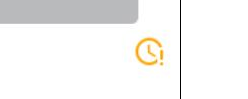
If you get a notification from the MyEd app to tell you that you have a new message, but when you open the app nothing is there or after sending a message to school if the symbol just under the message has an orange clock with and exclamation mark next to it (example below) then the message has not been sent to school.
The My Ed support team have offered the following advice in order to get the app working again correctly for parents.
Please note that it is important that you follow the steps below in order to ensure you see messages sent from The Radclyffe School.
Ensure that you are on the latest version of the My Ed app by clicking on the link below which should take you to the App page for your device (Android or iOS)
https://www.myedschoolapp.com/get/
Ensure that you on the latest version of the My Ed app by clicking on Update on the app in the Apple App Store or Android Play Store.
Once you have updated the app, open it up and click on the menu button (three horizontal lines) - highlighted in a green circle in the image below
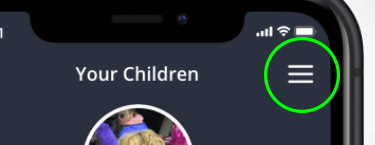
Then click "Sync Data" from the menu. This should take less than a minute to complete, depending on your Internet connection.

If you then go to your messages, you should then see all the latest messages appear and any messages that you send should also have a green clock and tick next to them.
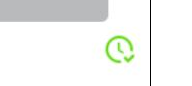
If you do not see any new messages appear or messages you send don't have the green tick beneath them, please send a message to school within My Ed and ask us to send you a test message to check that you are receiving messages. We will aim to reply within 1 school day with the test message.
If, after following all the steps above, you are still unable to receive or send messages to/from The Radclyffe School through My Ed please contact us on [email protected]


